
Company Portal → management profile → device compliance
Visual walkthrough · macOS
Company Portal first. Platform SSO second.
Two separate jobs make the Mac manageable and connect its sign-in to Microsoft Entra. Finish the management-profile steps before waiting for the Platform SSO registration prompt.
Show the pictures ↓Registration Required → Entra + MFA → registered Mac
Before the user begins
Five checks prevent most false starts.
macOS
macOS 14 Sonoma is Microsoft’s recommended minimum for the best experience; macOS 13 Ventura remains supported.
Company Portal
Version 5.2404.0 or later. An older build does not include the required Platform SSO support.
Intune
The Mac can enrol in Microsoft Intune and the user has the required licence and device-registration permission.
Administrator setup
The SSO extension payload with Platform SSO settings is configured and assigned in Intune.
MFA
The user is registered for a Microsoft Entra MFA method. Microsoft Authenticator is recommended.
Administrator boundary: the user cannot repair a missing Intune licence, inactive APNs certificate, absent Company Portal deployment or missing Platform SSO profile. Check those assignments before asking the user to repeat enrolment.
Phase 1 · enrol the Mac in Intune
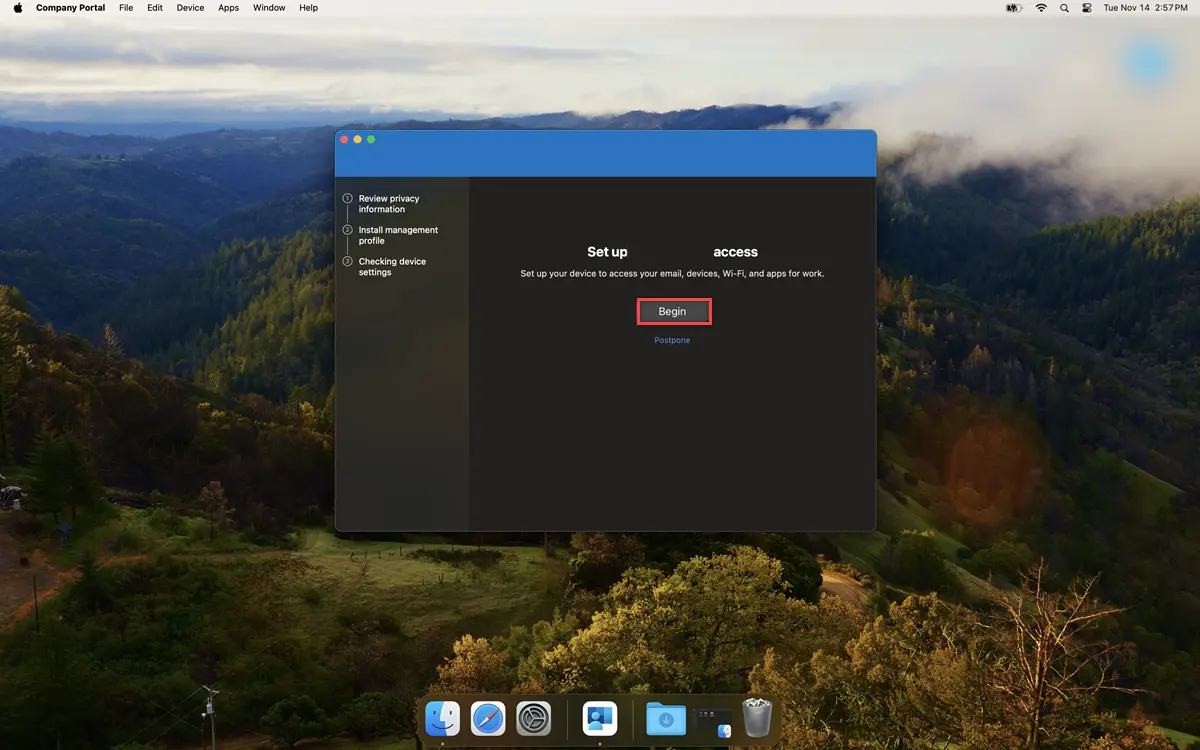
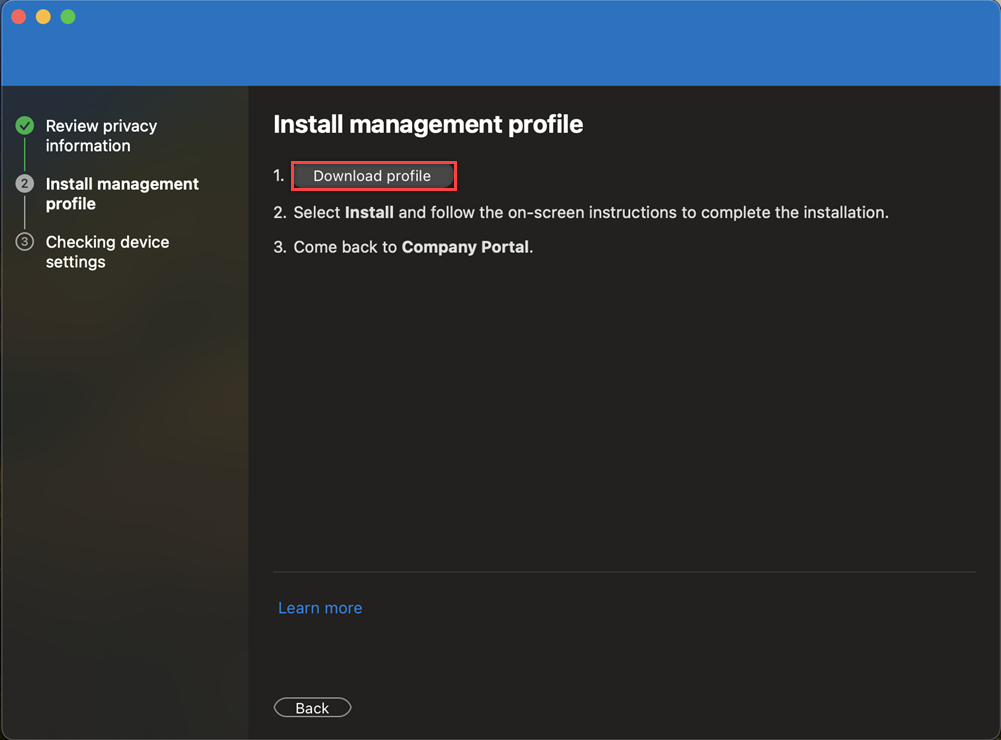
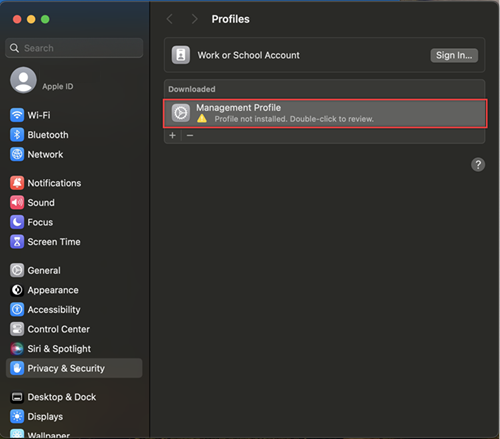
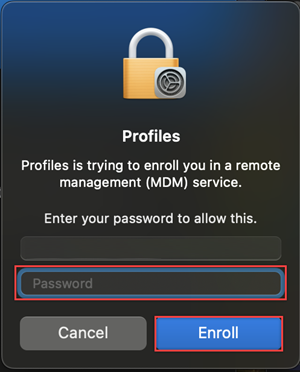
Follow the red highlight in each picture.
The organisation name displayed in Company Portal will differ. Never approve a management profile if the expected organisation name or administrator instructions do not match.
1
2
3
4
The profile downloaded, but Settings did not open
Open System Settings manually and search for “Profiles”. The screenshots show an earlier macOS layout; newer versions may use Device Management. If no downloaded management profile appears, return to Company Portal and retry the download once; then capture the exact message rather than repeatedly reinstalling the app.
Company Portal says the device is not compliant
Open the device status in Company Portal and note the named failing setting. The technician should check the per-setting compliance report, last check-in, assigned policies and grace period. Compliance can take time to calculate after enrolment.
Phase 2 · Microsoft Entra + Platform SSO
Use the method chosen by the administrator.
Secure Enclave, smart card and password are policy choices—not three buttons the user should test at random.
RecommendedSecure Enclave
Uses a hardware-bound key for a passwordless experience. Select the Registration Required notification, unlock the Mac with Touch ID or the local password, sign in to Microsoft Entra and complete MFA when required.
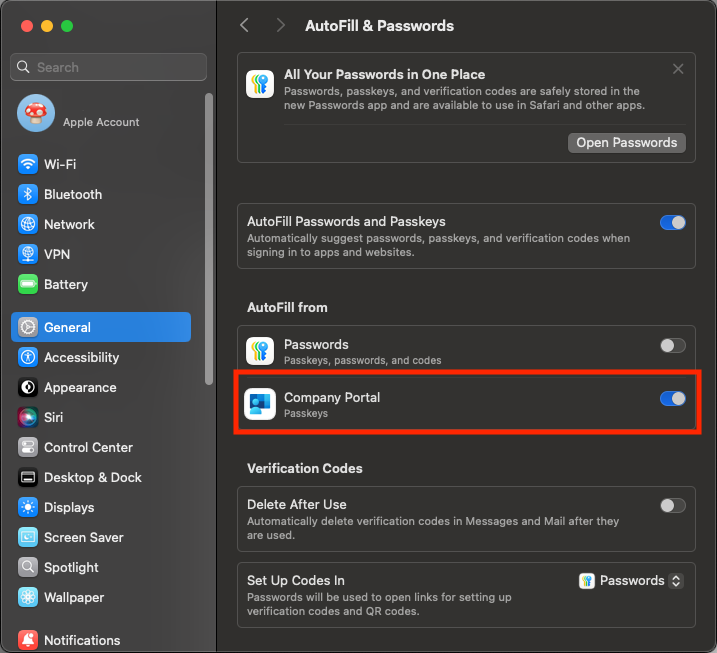
After registration, the platform credential can be enabled as a passkey source in General → AutoFill & Passwords.
Specialist setupSmart card
Requires certificate-based authentication, a supported smart card containing the correct certificate and pairing with the local Mac account. The user registers from the notification, enters the smart-card PIN and completes MFA if required.
Use the organisation’s tested smart-card procedure; do not improvise certificate pairing on a production Mac.
Policy optionPassword
The user opens the registration notification, signs in to Microsoft Entra, completes any required MFA and enters the local Mac password when prompted. If the local and Entra passwords differ, follow the additional authentication prompt.
Once Platform SSO is enabled, the previous local password may no longer work as before. Explain the change and test restart and offline sign-in.
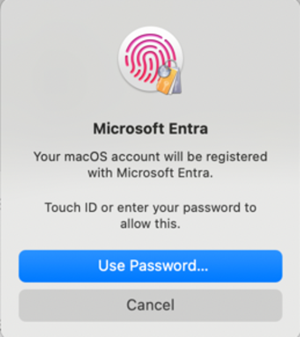
Registration Required→Unlock Mac→Entra sign-in→MFA→Registered
Prove it worked
Check registration—do not rely on the popup disappearing.
- 1
Open System Settings → Users & Groups.
- 2
Next to Network Account Server, select Edit.
- 3
Confirm Platform SSO: Registered.
- 4
Open the information button beside the username and confirm the expected method: Secure Enclave, Smart Card or Password.
Command-line evidence for a technician
app-sso platform -sMicrosoft documents this as an additional status check. The output should indicate that SSO tokens were retrieved. On macOS 13, Microsoft says this command is required for checking status.
The Registration Required notification did not appear
Wait about 10 minutes, or sign out and back in to retrigger it. On macOS 14 and later, open Settings → Users & Groups → Network Account Server → Edit → Repair. If it still fails, confirm Company Portal version, profile assignment, network path and Platform SSO configuration.
The Mac was already enrolled before Platform SSO was enabled
The administrator can update the assigned SSO extension profile. When the new Platform SSO profile installs, the Mac should show the Registration Required notification. Complete registration at the earliest suitable time, then verify status.
Need the wider design?
Continue with the complete Mac rollout.
Administrator setup
Configure the Entra ID and Platform SSO policy before asking users to register.