
Users and groups
Pilot users and device groups exist, with an owner and intentional membership.
Novice route · iOS and iPadOS
Eight short stages. Open only the stage you need, follow the portal path, then verify one pilot device before moving on.
Enrol a school-owned iPad ↓Prerequisites
Pilot users and device groups exist, with an owner and intentional membership.
Every enrolling user has an Intune-capable licence, unless the documented device-only model applies.
Microsoft Intune is set as the tenant’s mobile-device-management authority.
The APNs certificate is active, its Apple account is recorded and renewal has an owner.
Renew, do not replace: renew the existing Apple MDM push certificate with the same Apple account. Replacing it can interrupt management of enrolled Apple devices.
iPad enrolment · administrator and user · checked 8 September 2026
Do not reset a working iPad without authorisation and a recovery plan. Assigning a different ADE policy after enrolment does not automatically replay Setup Assistant.
Microsoft’s current ADE procedure and prerequisites. Older deployments may show Profiles instead of Enrollment policies.
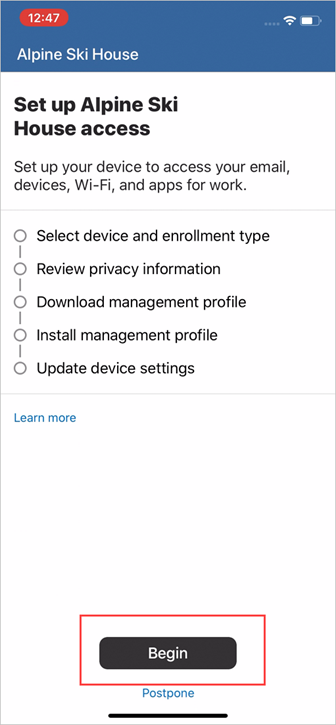
Confirm which personal-device enrolment method your organisation permits. In Company Portal, sign in with the organisation account and select Begin. Read the privacy information, then follow the offered enrolment steps. For a downloaded management profile, open Settings, install the profile when prompted and return to Company Portal to finish the checks.
Deployment picture
Define an exit test for every wave. “The profile was assigned” is not enough; a device must receive it, behave correctly and remain usable after restart and update.
Eight-stage runbook
Portal pathIntune admin center → Devices → Overview
Create a named pilot group. List the devices, applications, networks and services the pilot must use. Decide whether each device is personal, 1:1 school-owned, shared or dedicated.
The pilot has an owner, 5–10 representative devices, entry criteria, exit criteria, a support contact and a rollback decision.
Starting with All users or All devices before enrolment, licences and dependencies have been tested.
Portal pathDevices → Compliance → Policies → Create policy → iOS/iPadOS
Begin with supported OS, passcode and threat-level controls that your environment can actually report. Add a clear grace period and a useful noncompliance message.
Per-setting status shows why the pilot device passes or fails. Only then pilot Conditional Access with tested exclusions and emergency-access accounts.
Treating compliance and Conditional Access as the same policy, or blocking users before the device has checked in.
Portal pathEndpoint security → Overview; Tenant administration → Connectors and tokens
Decide whether Microsoft Defender for Endpoint or another supported mobile-threat-defence connector will provide risk. Connect it, test reporting and set a realistic threat threshold.
A safe device reports an expected risk level and a deliberately risky test can trigger the planned response without affecting production.
Creating a threat-level rule without the connector, application and data feed that make the setting meaningful.
Portal pathDevices → Manage devices → Configuration → Create → New policy → iOS/iPadOS
Create separate profiles for Wi-Fi, certificates, restrictions and updates. Name each with platform, purpose and pilot status. Use Settings Catalog where the required setting is available.
The profile reports Succeeded and the setting appears on the device after sync. Check per-setting status when it does not.
Configuring the same setting in multiple profiles or copying restrictions without testing the classroom and accessibility impact.
Portal pathEntra admin center → Protection → Conditional Access; Intune → Configuration
Require MFA through the approved Entra policy. For certificate-based Wi-Fi, VPN or email, deploy the trusted root first, then the tested SCEP or PKCS profile.
A pilot user can enrol, complete MFA and connect to the intended service. Certificate subject, chain and renewal timing are correct.
Deploying a certificate profile before the connector, issuing authority, network trust and renewal path are ready.
Portal pathApps → All apps → Create
Add required store or Apps and Books applications, web apps and signed line-of-business apps. Use Available for optional applications and app protection where only organisation data needs management.
Each required app installs under the intended user or device assignment, opens, updates and reports its state in Intune.
Mixing user and device assignments without intent, or assigning every application as Required on day one.
Portal pathDevices → Device onboarding → Enrollment → Apple mobile
Use Apple School or Business Manager with Automated Device Enrollment for new school-owned devices. Use Apple Configurator when a wired route is required. Use Apple User or Device enrollment for approved personal devices.
The serial is assigned to Intune, the enrolment policy is assigned, supervision and ownership are correct, and the expected user affinity appears.
Using a personal-device method for organisation-owned equipment or expecting ADE to apply to an already configured device without the documented migration or reset route.
Portal pathDevices → All devices → select device → device action
Test Sync on a pilot. Document when to use Lost mode, restart, passcode removal, retire, wipe or delete and who can authorise each action.
The action status, last check-in and behaviour on the physical device agree. Record the result in the support case.
Assuming a server-side action status proves an offline device received the command, or deleting evidence before an incident is understood.
Enrolment in one picture
Best fit for scalable, supervised deployment. Assign the device to the Intune MDM server, sync the token, assign an enrolment policy and complete Setup Assistant.
Use when a physical Mac connection is appropriate, including direct enrolment for user-less devices. It takes more hands-on time.
Use the least intrusive approved route. If only organisation data in supported apps needs protection, assess whether app protection without device enrolment is sufficient.
Next Apple guide